StudioiPhone + Web

Sync Matches from iPhone to Studio

Choose exactly which local matches to send, review the result on iPhone, and find the synced records in the Studio match library.

At a glance

Open Padel Pointer Settings, tap Sync matches, select individual matches or Select All, and tap Sync. Keep the app open until the results screen confirms which matches were created, updated, or failed.

What you’ll need

  • An iPhone already connected to the correct Studio account.
  • One or more completed Apple Watch matches saved in Padel Pointer on that iPhone.
  • An internet connection while the selected matches are sent.
Step 1

Open the Studio match picker

  • In Padel Pointer on iPhone, open Settings.
  • Under Padel Pointer Studio, confirm that Status says Connected and check the masked account.
  • Tap Sync matches. If the status says Not connected, link the iPhone before continuing.
Step 2

Choose what to sync

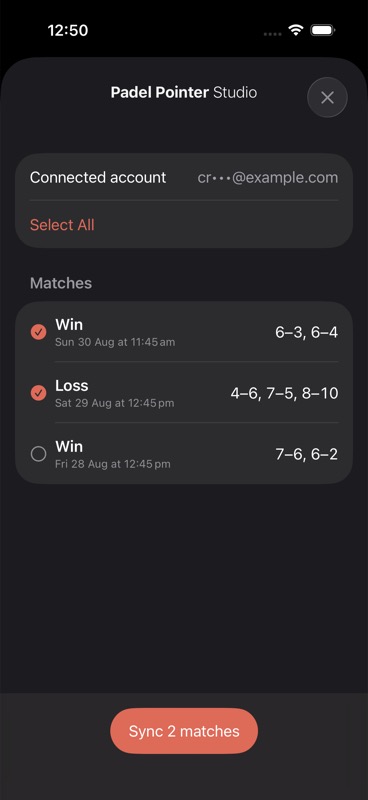
  • Tap a match to include or exclude it. A filled checkmark means the match is selected.
  • Tap Select All if you want to send every match currently available on the iPhone.
  • Check the button at the bottom for the exact number of selected matches, then tap Sync.
Studio match selection screen in Padel Pointer on iPhone
The iPhone shows the connected account, selected matches, and the exact sync count.
Step 3

Review the result before leaving the app

  • Wait for the progress screen to finish. Cancelling stops any matches that have not yet been sent.
  • Review the Synced and Failed counts. Use Retry Failed Matches when the app offers it.
  • Sending a previously synced match updates the Studio copy instead of creating another copy for the same Studio account.
Step 4

Find the matches in Studio

  • Return to Studio in your browser and open Matches.
  • If Studio was already open, tap Sync or Refresh to reload the dashboard from the server.
  • Remember that the web button refreshes Studio; it does not start a new upload from your iPhone.
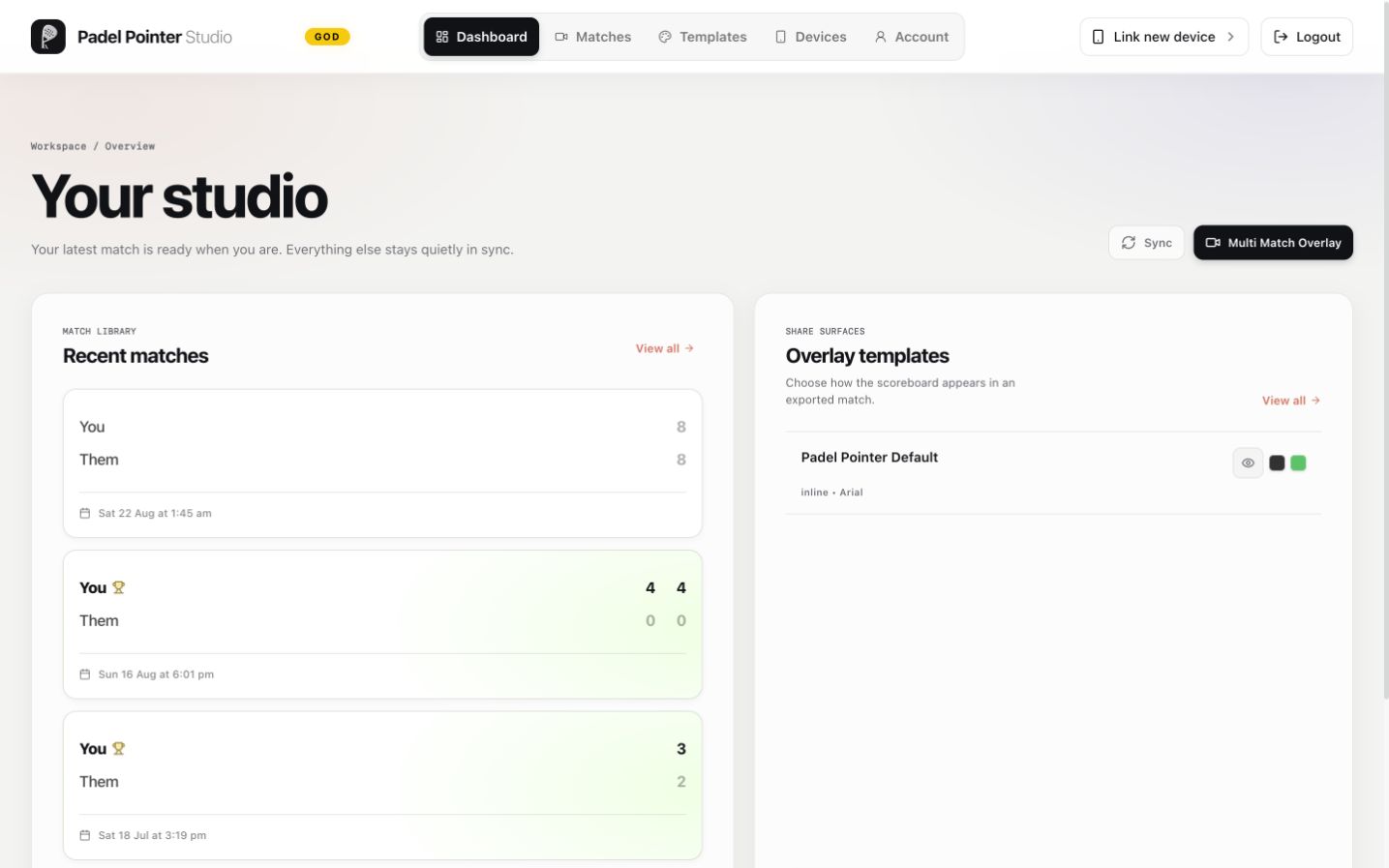
Recent synced matches on the Padel Pointer Studio dashboard
After the iPhone finishes, the selected records appear in Studio’s recent matches and match library.

You’re ready when

  • The iPhone results screen reports the expected number of successful matches.
  • The connected account shown in Padel Pointer is the account open in Studio.
  • The Studio match library shows the same date, venue, score, and match format as the iPhone record.

Frequently asked questions

Can I sync every match at once?

Yes. Use Select All in the iPhone match picker, then confirm the count on the Sync button before starting.

Will syncing the same match twice create a duplicate?

No. For the same Studio account, syncing that match again updates the existing Studio record.

Are player names and workout data sent to Studio?

Studio receives the match data needed to identify the match and build its scoreboard. Player display names and Health or workout metrics are not included in the Studio sync.

Sources

Related support guides

Still blocked?

If a match repeatedly fails, include its date, format, and the error shown on the iPhone results screen. Include the exact error, app version, iOS version, and a screenshot of the Studio status or error.