Start from Padel Pointer on iPhone
- Open Padel Pointer and tap Settings.
- Under Padel Pointer Studio, tap Connect to Studio.
- Review the Studio introduction, then choose Create Studio account or Log in to my account.
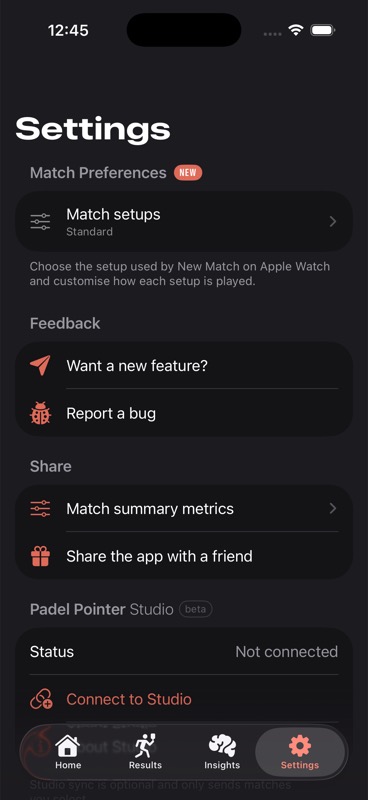
Connect from the same iPhone or scan a QR code from another screen, then confirm the Studio account before any match is shared.
4 min read · Updated 30 Aug 2026
The fastest route uses one iPhone: open Studio from Padel Pointer Settings, sign in, tap Open in Padel Pointer, check the masked account, and confirm. QR linking is available when Studio is open on another screen.
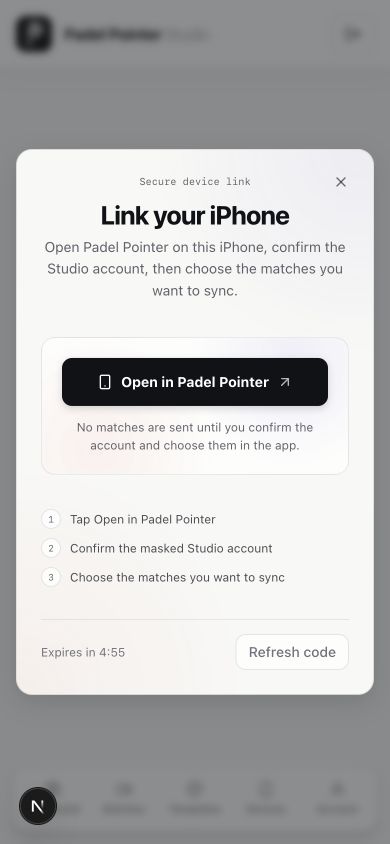
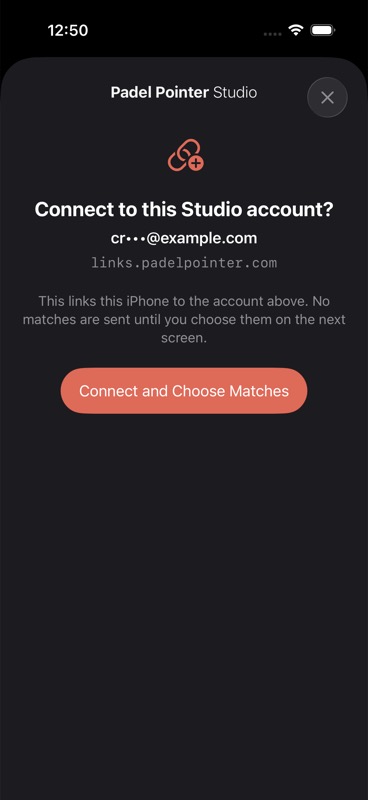
The short-lived, one-time link protects the connection process. Generate a fresh link in Studio if the timer runs out.
No. Opening the link only lets Padel Pointer preview the Studio account. You must confirm the account and then choose the matches you want to sync.
Yes. Repeat Link new device for each iPhone. Every linked iPhone appears separately in Studio under Devices.
The official Studio workspace and product entry point.
How Padel Pointer and Studio handle account, device, and match data.
If linking fails, send the exact error and say whether you used Open in Padel Pointer or the QR-code route. Include the exact error, app version, iOS version, and a screenshot of the Studio status or error.