StudioiPhone + Web

Manage iPhones Connected to Studio

View, rename, disconnect, or replace Studio device connections without removing matches already stored in the Studio workspace.

At a glance

Open Devices in Studio to review every linked iPhone, rename it, inspect its matches, or disconnect it. You can also disconnect from Padel Pointer Settings. Disconnecting stops future syncs but does not remove matches already synced to Studio.

What you’ll need

  • Access to the Studio account that owns the device connection.
  • The iPhone itself if you want to disconnect from inside Padel Pointer.
  • A fresh one-time link if you are replacing a phone or switching accounts.
Step 1

Review connected iPhones in Studio

  • Open Studio in a browser and select Devices.
  • Each card represents one connection. Select a device to view the matches received through it.
  • Use Rename to give similar devices a clearer label, such as Filming iPhone or Club iPhone.
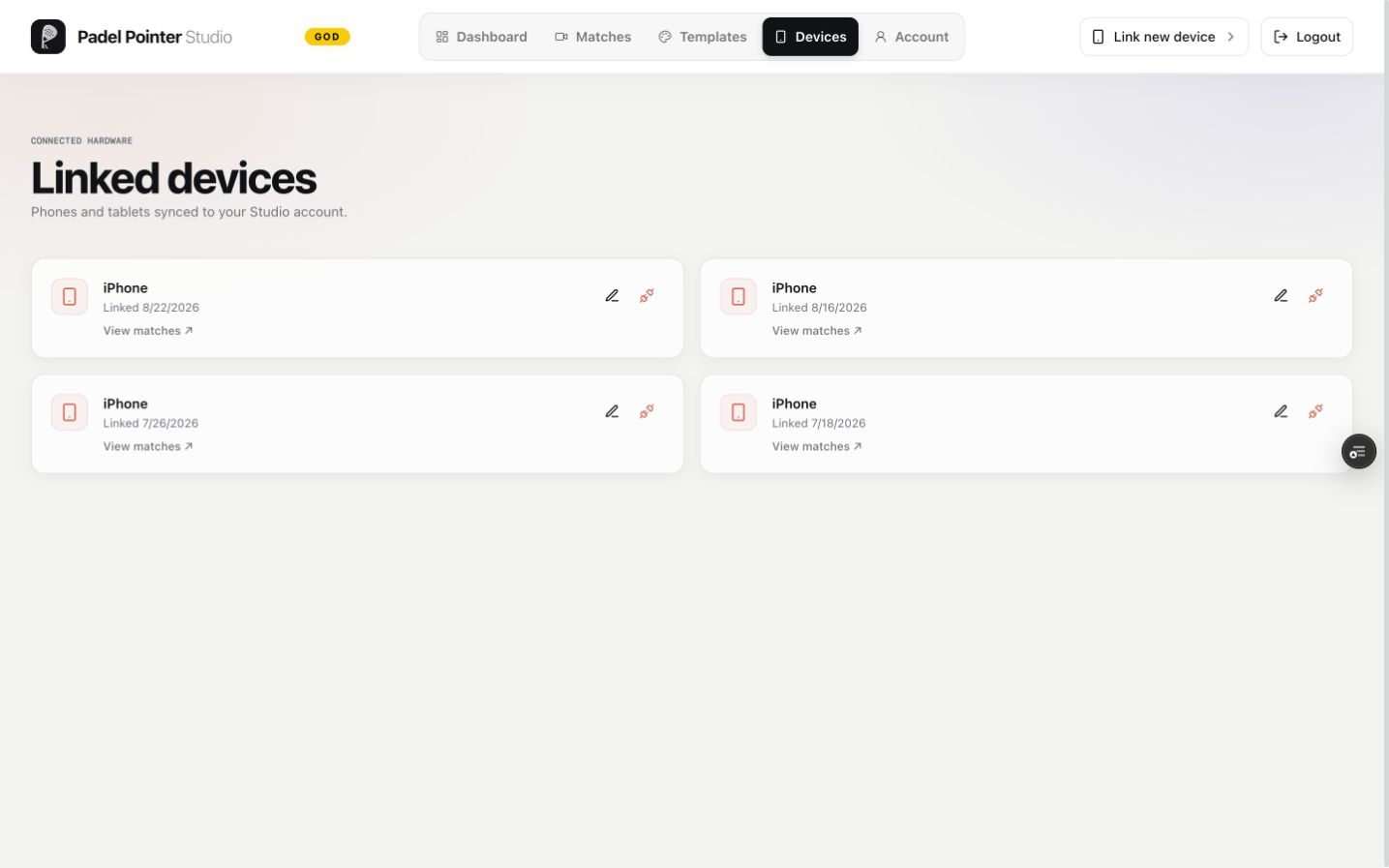
Linked devices page in Padel Pointer Studio
Studio keeps each iPhone connection visible and independently manageable.
Step 2

Connect another iPhone

  • Select Link new device in the Studio header and complete the secure link on the additional iPhone.
  • One Studio account can keep multiple active iPhone connections.
  • If the same iCloud match exists on two linked iPhones, sending it from both updates one Studio record for that account rather than creating a duplicate.
Step 3

Disconnect an iPhone

  • In Studio, open Devices and use Disconnect on the device you no longer trust or use.
  • Or, on that iPhone, open Padel Pointer Settings and tap Disconnect under Padel Pointer Studio.
  • Previously synced matches stay in Studio. Disconnecting only prevents that connection from sending more data.
Step 4

Switch the iPhone to another Studio account

  • Sign in to the new Studio account and generate a new mobile link.
  • Open the link on the currently connected iPhone. Padel Pointer warns that the existing connection must be disconnected before the switch completes.
  • Confirm Disconnect and Switch only after checking the masked new account. The iPhone stores one active Studio account connection at a time.

You’re ready when

  • The Devices page shows only the active connections you expect.
  • Renamed devices remain easy to distinguish in device and match filters.
  • A disconnected iPhone can no longer sync until it is linked again.

Frequently asked questions

Does disconnecting an iPhone delete its synced matches?

No. Previously synced matches remain in Studio. Delete individual Studio matches separately if you no longer want them there.

Can one iPhone connect to two Studio accounts at once?

No. One Padel Pointer installation holds one active Studio account connection. Linking a different account requires an explicit switch.

What should I do if my iPhone is lost?

Open Studio on another device, go to Devices, and disconnect the lost iPhone. Its stored Studio credential can no longer be used after revocation.

Sources

Related support guides

Still blocked?

If a device remains active after you disconnect it, send the device label and the time you tried the action. Include the exact error, app version, iOS version, and a screenshot of the Studio status or error.