StudioiPhone + Web

Get Started with Padel Pointer Studio

Learn what Studio does, what you need, and how your iPhone, Studio workspace, and recorded matches fit together.

At a glance

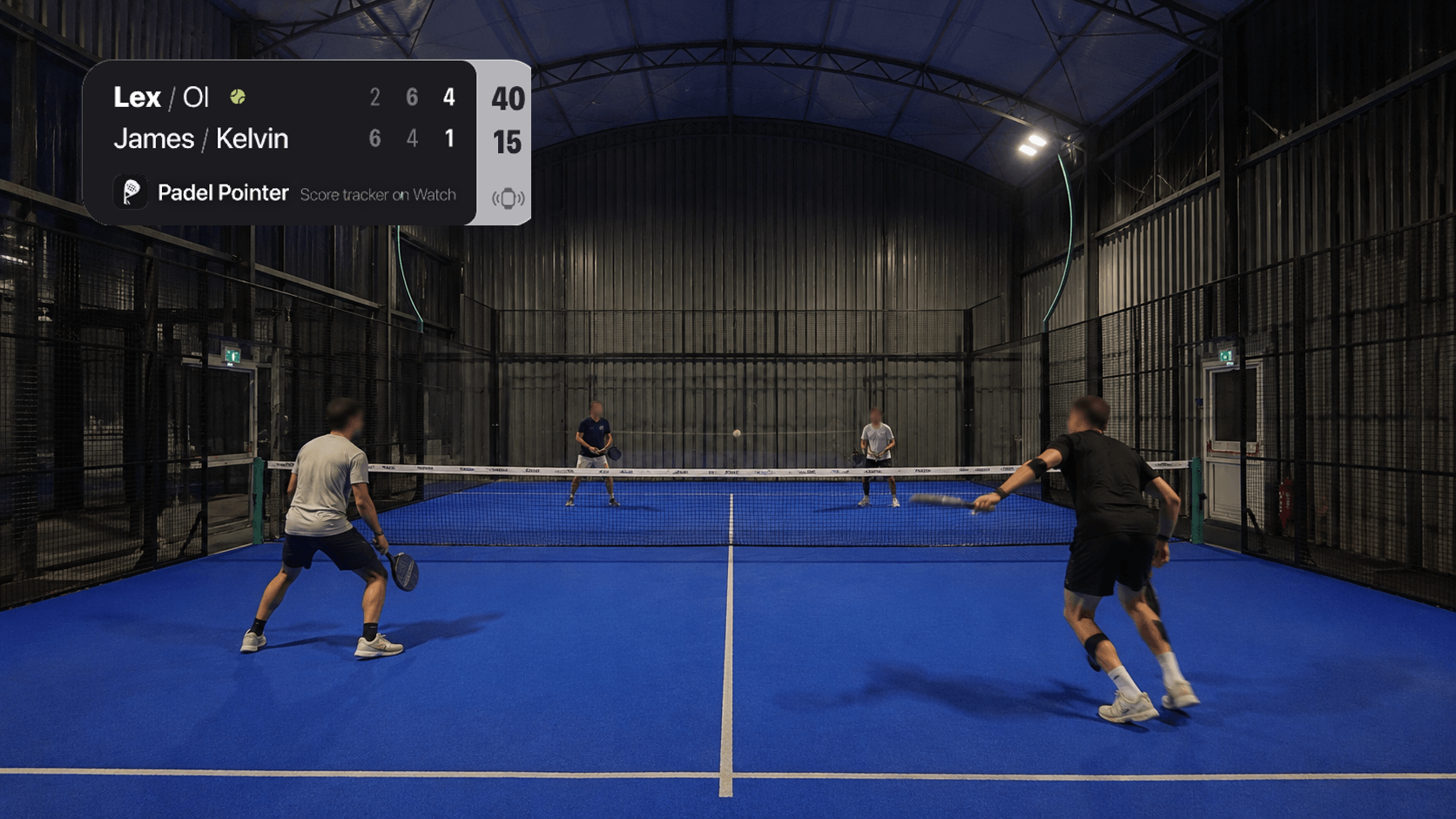
Studio turns matches recorded with Padel Pointer on Apple Watch into a web workspace for creating video scoreboards. Create or sign in to Studio, link the paired iPhone that holds your matches, choose what to send, then continue in the web workspace.

What you’ll need

  • The latest Padel Pointer app on the iPhone that holds your match history.
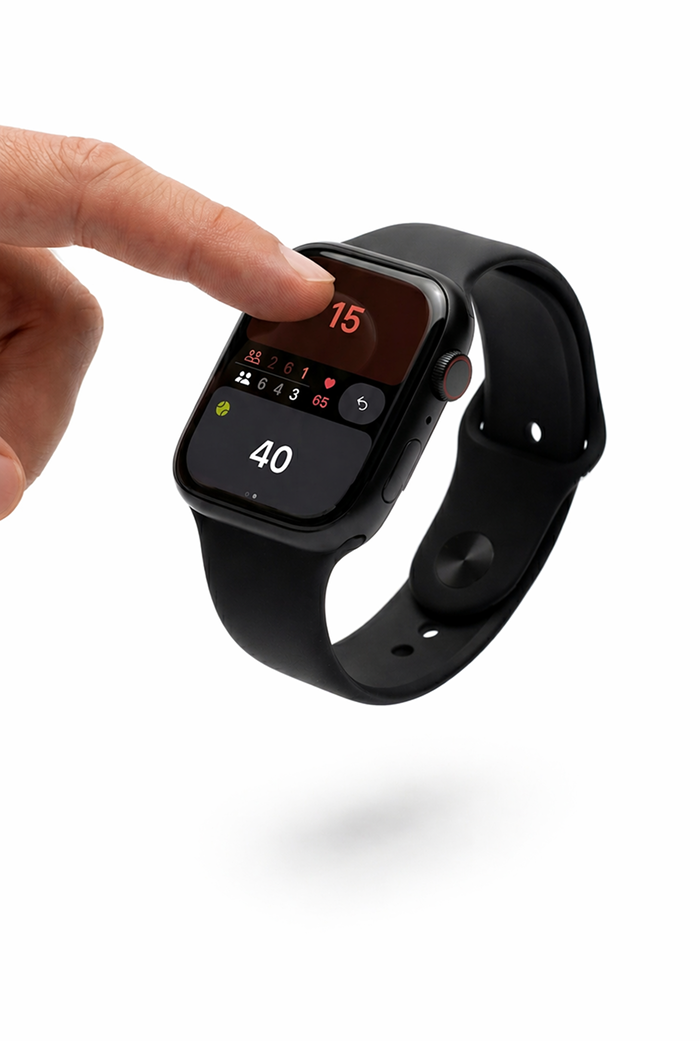
  • An Apple Watch with Padel Pointer installed to record the point-by-point match data used by Studio scoreboards.
  • A Studio account and an internet connection on your iPhone.
  • At least one completed match recorded on Apple Watch if you want to test syncing straight away.
Step 1

Understand the iPhone-to-Studio workflow

  • Record the match with Padel Pointer on Apple Watch. The Watch captures the point-by-point data Studio needs to build the scoreboard.
  • Open Padel Pointer on iPhone and choose which matches to send to Studio.
  • Use Studio in a browser to review the synced match and create a scoreboard for your video.
  • The Apple Watch is required to record the match, but it does not need its own Studio connection. Watch matches first arrive in the paired iPhone app, then you choose whether to send them to Studio.
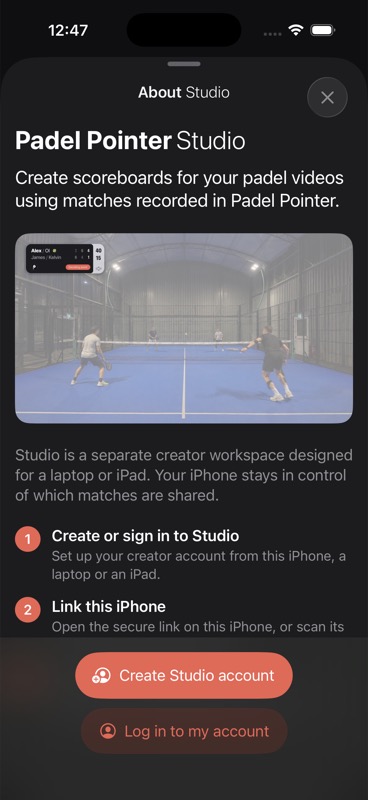
About Studio screen in Padel Pointer on iPhone
The Studio introduction in Padel Pointer explains the three-part setup flow.
Step 2

Create or sign in to your Studio account

  • In Padel Pointer on iPhone, open Settings and find Padel Pointer Studio.
  • Tap Connect to Studio, then choose Create Studio account or Log in to my account.
  • Complete registration or sign in in your browser. If you started on iPhone, Studio keeps you in the same-device setup flow.
Step 3

Link this iPhone and choose matches

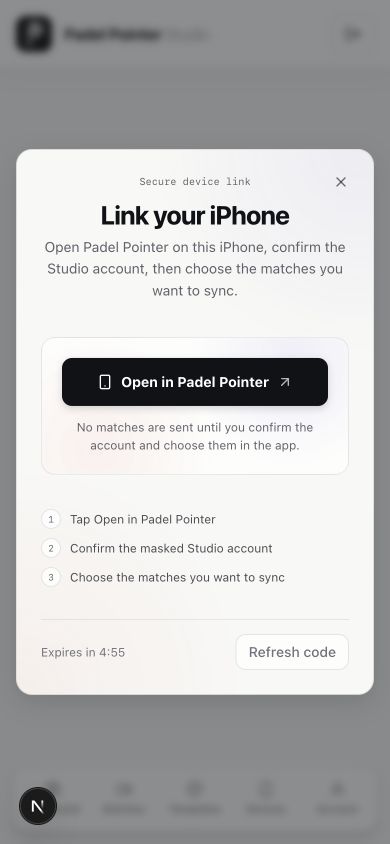
  • In Studio, tap Open in Padel Pointer. If Studio is open on a laptop or iPad, scan the QR code with the Camera app on your iPhone instead.
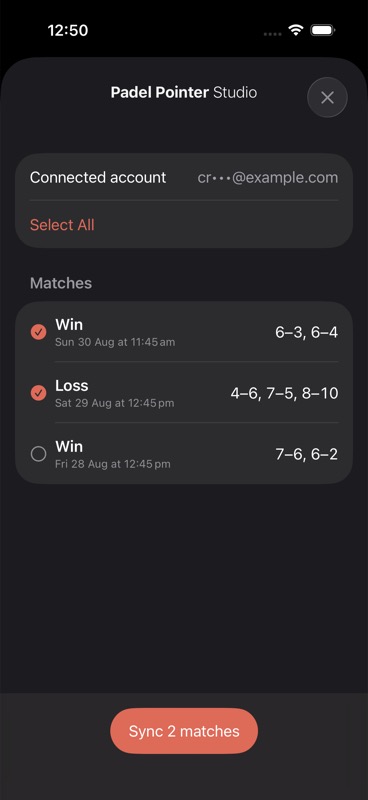
  • Check the masked account shown in Padel Pointer, then tap Connect and Choose Matches.
  • Select individual matches or use Select All, then tap Sync.
  • The connection stays on this iPhone, so future syncs start in Padel Pointer without repeating account setup.
Step 4

Continue in the Studio workspace

  • Return to the Studio dashboard in your browser after the iPhone confirms the sync.
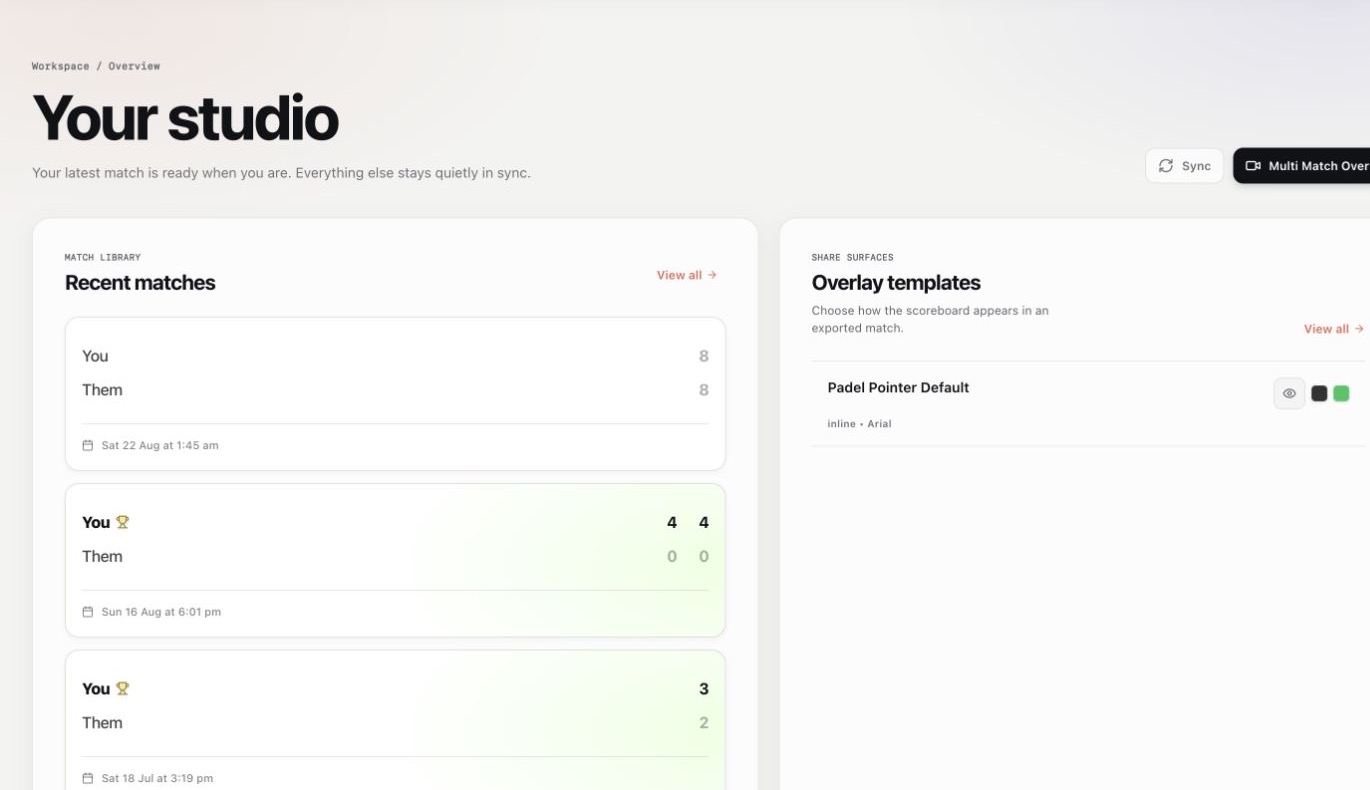
  • Open Matches to view the synced match, or open Templates to style a scoreboard.
  • The Sync button in the web dashboard refreshes what Studio already received. New match uploads are always started from Padel Pointer on iPhone.
Padel Pointer Studio dashboard with recent matches and overlay templates
Synced matches appear in the Studio dashboard beside your scoreboard templates.

You’re ready when

  • Settings in Padel Pointer shows Studio as Connected and displays the masked account.
  • The Studio dashboard lists at least one linked iPhone under Devices.
  • Matches selected on iPhone appear in the Studio match library after the sync finishes.

Frequently asked questions

Do I need an Apple Watch to use Studio?

Yes. Padel Pointer on Apple Watch records the point-by-point match data Studio uses to create the scoreboard. The Watch does not connect to Studio separately: its matches sync to the paired iPhone, and you send the selected matches to Studio from there.

Does Studio upload every match automatically?

No. Your iPhone stays in control. You open Studio sync in Padel Pointer and select the matches you want to send.

Can I set everything up using only one iPhone?

Yes. Start from Settings in Padel Pointer, sign in to Studio in the browser on that iPhone, tap Open in Padel Pointer, confirm the account, and choose your matches. A second screen is optional.

Sources

Related support guides

Still blocked?

If you cannot complete setup, tell us which screen you reached and whether Studio showed the expected masked account. Include the exact error, app version, iOS version, and a screenshot of the Studio status or error.