guide / analysis

How to add a scoreboard to a recorded padel video

Turn a Watch-recorded match into a transparent scoreboard for your video edit, with a practical timing example and checks before you share the footage.

Quick answer

Film the match while recording every point in Padel Pointer on Apple Watch. Once it reaches your iPhone, choose that match for Studio, select a scoreboard template and align it with the video's recording start time. Download the ZIP, extract the transparent .mov and place it above your match footage in a compatible editor. This workflow is for recorded video; Studio does not currently provide a live OBS browser overlay.

Score on your Watch. Review on your iPhone.
Download Padel Pointer for iPhone and Apple Watch.

Download Padel Pointer

Prepare the footage and the score record

You need an iPhone with a paired Apple Watch, Padel Pointer, a camera recording the match, a Studio account and an editor that supports transparent video above another track. For the first attempt, choose a set-based match such as Standard. Studio can receive Americano and other point-race records, but it does not currently generate scoreboard overlays for those formats.

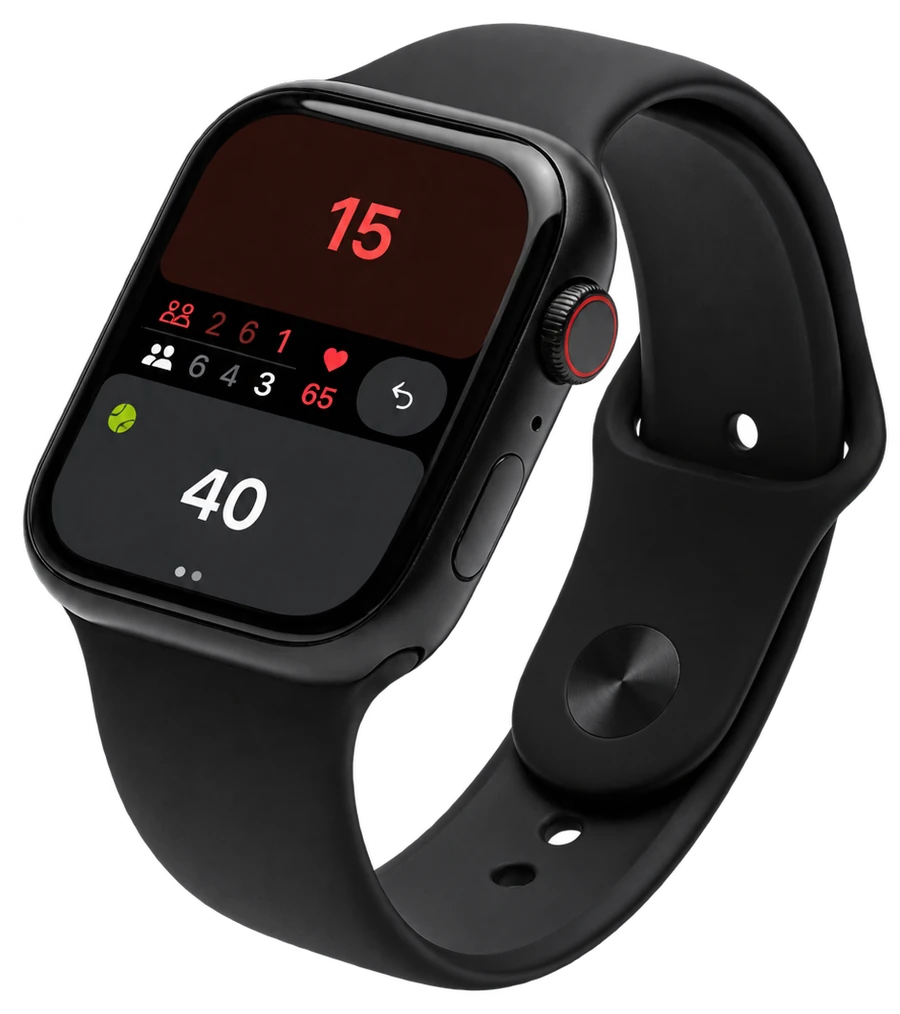
Start filming before play and keep a continuous recording if possible. During the match, record each point on Watch. Studio uses those taps and their timestamps; it does not watch the footage and infer the score. Ask one person to handle the score so the responsibility stays clear between rallies.

  • Check the camera's battery, storage and framing before play.
  • Record the points as you play, including corrections when needed.
  • Keep the original video and its recording-time information for the edit.
Send the selected match from iPhone to Studio

Finish and save the Watch match, then open it on your iPhone and confirm the final score. If it has not arrived, keep the paired devices nearby and open Padel Pointer on both before continuing. The Watch saves to its paired iPhone; it does not connect directly to Studio.

In iPhone Settings inside Padel Pointer, open Padel Pointer Studio and choose Connect to Studio. Create an account or sign in, use Open in Padel Pointer from the linking screen, and confirm the masked account address. Choose the filmed match and sync it. Opening a link does not itself send all your matches, and your camera footage stays in your editing workflow.

  • Verify the match date and score before selecting it.
  • Confirm the Studio account before sending match data.
  • Wait for the sync result, then find the match in Studio's Matches area.

Style the scoreboard and align the recording start

Open the match in Studio and select Set up scoreboard. Choose a template, enter the player names and pick 16:9 for horizontal footage or 9:16 for a vertical edit. Adjust the scoreboard's size and position so it leaves the ball and players visible.

With Sync video timing enabled, enter the original video's recording start time and the correct time zone. As an illustration, if filming began at 18:00:00 and the first score tap was at 18:00:35, that change belongs around 35 seconds into the original recording. This is an example of the timing relationship, not a guarantee that a tap occurred exactly when the rally ended.

  • Use the original recording time, not the time you copied or exported the file.
  • Check the time zone if the camera and editing devices differ.
  • If you disable video timing, plan to align the generated file manually.

Place the transparent video above the match

Generate the scoreboard and download the ZIP. Extract its transparent .mov and import it into your editor alongside the original footage. Put the match video on a lower track and the scoreboard on a track above it. Transparency lets the court remain visible around the score graphic.

Studio's setup guide names Final Cut Pro, DaVinci Resolve, Premiere Pro and CapCut as examples of layered editing workflows. Import and transparency behaviour can vary with the editor and version. Test a short segment in your own setup before committing to the full export, and use that editor's current guidance if the overlay appears with a solid background.

  • Check that both video tracks begin at the intended timeline position.
  • Confirm the scoreboard background is transparent in the composed edit.
  • Export a short test and play it back outside the editor before exporting the whole match.

Check the score after every cut

Watch a score change near the beginning and another later in the recording. A fixed offset suggests the two tracks need alignment; a problem that begins after a cut suggests the edit has changed their relationship. Use the recorded score and footage together to locate the mismatch rather than move the graphic until one isolated moment looks correct.

When making highlights, cut the footage and scoreboard together for each segment. A clip that jumps from one rally to another must jump to the matching part of the scoreboard too. For your first attempt, film a short practice sequence, score a few points, sync it and test the complete editing path before filming a full match.

  • Check that the opening score agrees with the point where the clip begins.
  • Review each transition between selected highlights.
  • Confirm a later score change as well as the first one before sharing.

Frequently asked questions

Can Studio add a scoreboard to a live OBS stream?

Not currently. Studio generates a transparent video for recorded-match editing. It does not provide a live browser source for OBS or other streaming software.

Does Studio work out the score from the camera footage?

No. It builds the scoreboard from points and timestamps recorded on Apple Watch. The footage stays in your editor; missing point records are not recovered by analysing the video.

Can I use a manually entered match or an Americano score?

This automatic overlay workflow needs a usable Watch-recorded point timeline and a supported set-based match. Manually entered results lack those point timings, and point-race formats such as Americano are not currently supported for overlay generation.

Can I make vertical padel highlights?

Studio offers a 9:16 layout as well as 16:9. Choose the layout for your edit, then keep each selected footage segment aligned with the corresponding scoreboard segment.

Sources and evidence

Read next

Create the scoreboard for your recorded match

Open Studio to style and export your scoreboard. The setup guide walks through connecting your iPhone and sending the match you filmed.

Padel Pointer scorekeeping on a black Apple Watch